How to build a multi-file feature using Cursor Composer
Get the scoping wrong in Composer and it will happily rewrite files you never meant to touch at all. Here's the exact workflow for scaffolding and modifying multi-file features safely.
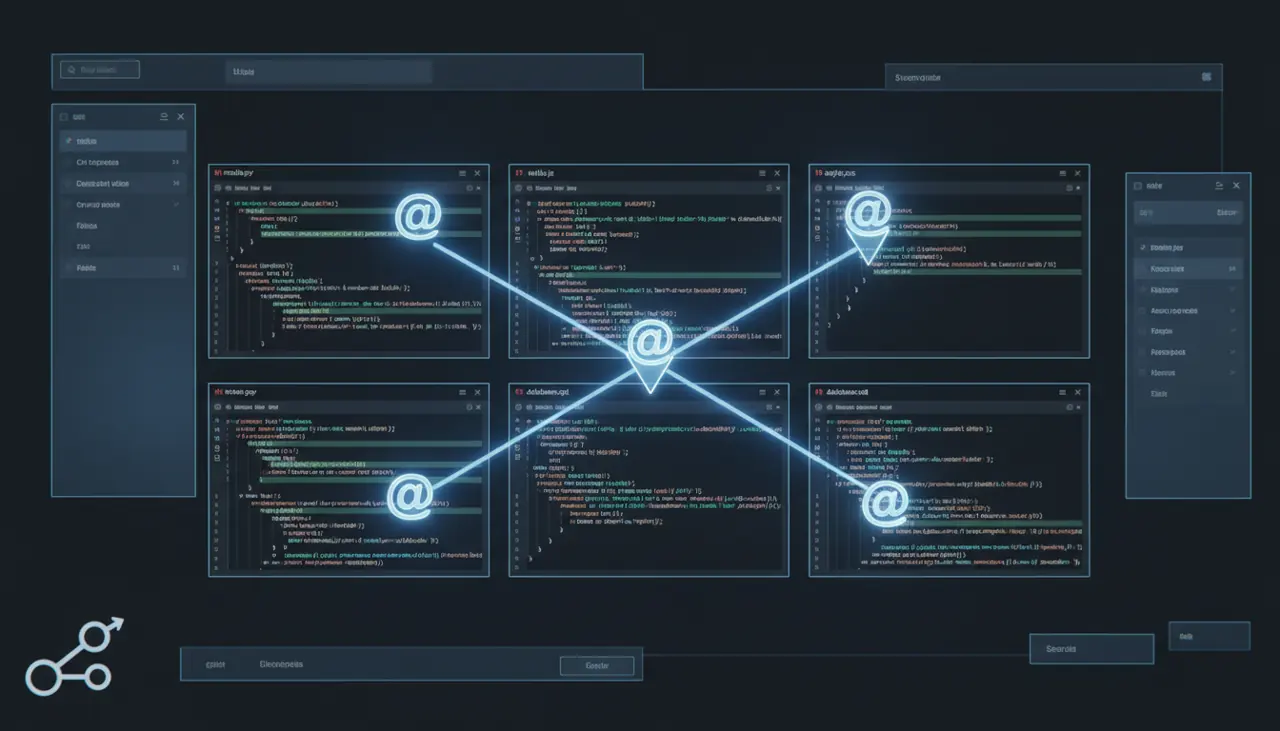
How to build a multi-file feature using Cursor Composer
Composer builds a multi-file feature by letting you describe the change once, then editing a proposed diff across every file it touches before you accept anything. The workflow is: scope your prompt tightly, pin context with @ mentions, review the file-by-file diff, accept or reject per file, and keep a git checkpoint before you start. Get the scoping wrong and it will happily rewrite files you never meant to touch.
I have used Composer daily since it moved into the main Cursor UI (it used to be a separate mode you toggled with Cmd+I on Mac or Ctrl+I on Windows, now it is folded into the unified Agent/Chat panel with a mode switch). The behavior below is based on Cursor versions in the 0.42 to 0.45 range through late 2025 and early 2026. Cursor ships fast, so specific keybindings and panel labels may have shifted slightly by the time you read this. Check the Cursor Composer docs for the current UI names before you get confused by a renamed button.
Chat vs Composer: what actually differs
Regular Chat in Cursor is a single-file conversation. You ask a question, it answers, and if it proposes code it drops one code block you manually copy into place, or in newer builds it can apply a single-file edit with an "Apply" button. Chat is stateless about your broader codebase unless you explicitly @ mention files. It is good for "explain this function" or "why is this test failing," and it rarely surprises you because it only ever writes to whatever file you were looking at.
Composer (now often just called "Agent" mode in the mode dropdown at the bottom of the chat panel) is different in three concrete ways:
- It can open, read, and write to multiple files in one turn without you switching tabs.
- It shows a review queue, a list of every file it plans to change, each with its own accept/reject diff view, rather than one inline diff.
- It can run terminal commands and search your codebase on its own (semantic search plus grep) to find files you didn't explicitly mention.
That third point is where the risk lives. Composer's autonomy is the feature and the danger. Chat never touches a file you didn't point it at. Composer will go looking for related files on its own, which is exactly what you want for a real feature and exactly what causes it to edit something you assumed was out of scope.
A concrete example: adding an API route and a frontend component
Say you're adding a "favorite this item" feature to a small Next.js app with a FastAPI backend. The realistic scope is:
- A new backend route, POST /api/items/{id}/favorite
- A Pydantic model or extension to an existing one
- A frontend component, FavoriteButton.tsx
- A hook or API client function to call the new route
- Possibly a small update to an existing item list component to render the button
That's five touch points across two languages. This is the kind of task Composer is actually built for, because doing it manually means five tab switches and a lot of copy-paste plumbing.
Here's the prompt structure I actually use, typed into the Composer input with mode set to Agent:
1Add a "favorite" feature.23Backend:4- New route POST /api/items/{id}/favorite in @routes/items.py5- Add a `favorited` boolean field to the Item model in @models/item.py6- Persist the favorite state using the existing db session pattern already in this file, don't introduce a new ORM call style78Frontend:9- New component @components/FavoriteButton.tsx, a simple toggle button10- Add a `toggleFavorite(itemId)` function to @lib/api.ts following the existing fetch wrapper pattern in that file11- Wire the button into @components/ItemCard.tsx, next to the existing delete button1213Do not touch any test files. Do not modify @routes/auth.py or anything under @middleware/.Two things matter in that prompt. First, I named every file I expect it to touch with @ mentions. Second, I explicitly excluded files with a negative instruction, because Composer's own file search will sometimes wander into auth or middleware code if it decides the route needs permission checks, and I want to decide that myself, not have it decided for me mid-diff.
After you submit, Composer runs its own search pass, opens the files, and produces a change plan. In the panel you'll see a list like:
1Modified: routes/items.py2Modified: models/item.py3Created: components/FavoriteButton.tsx4Modified: lib/api.ts5Modified: components/ItemCard.tsxEach entry expands into a standard diff view (red/green line changes) with per-file "Accept" and "Reject" buttons, plus a global "Accept All" at the top. This is the single biggest practical difference from Chat: you are reviewing a change set, not a wall of text.
Using @ mentions to actually restrict context
The @ symbol in Composer is not decorative, it changes what gets loaded into the model's context window and it changes what Composer considers "in scope" for editing. There are a few flavors worth knowing:
- @filename.ts pulls the whole file into context and tells Composer it's fair game to edit.
- @folder/ pulls in a folder's file list (not full contents of everything, Cursor is selective about what it actually sends) so Composer knows the shape of that area without you naming every file.
- @Codebase triggers a full semantic search over the repo, useful when you genuinely don't know where a pattern lives, but it's also the setting most likely to make Composer touch something you didn't expect.
- @Docs and @Web (when enabled) pull in external documentation rather than your files at all, useful for "implement this per the Stripe webhook docs" style prompts.
My rule of thumb after breaking things a few times: for a scoped feature like the favorite button example, name files explicitly and skip @Codebase entirely. Reserve @Codebase for exploratory prompts ("find every place we call the legacy pricing API") where you want breadth, then convert the result into a second, tightly scoped Composer prompt once you know the real file list.
You can also mention a specific symbol rather than a whole file in recent Cursor builds, using @functionName or @ClassName, which narrows context further than a full file mention. It's worth using on large files (I've seen it help meaningfully on files over 500 lines) where dumping the whole thing into context wastes tokens and occasionally causes the model to "fix" unrelated code nearby just because it's sitting right there in the diff view.
When Composer overwrites files you didn't intend, and how to revert safely
This is the part nobody puts in the marketing copy, so here's what I've actually seen go wrong.
Composer overreaches most often in three situations:
- Shared utility files. If your api.ts wrapper is imported everywhere, Composer sometimes "improves" the wrapper itself (adding error handling, changing a return type) while adding your new function, because it decided consistency mattered. That's a reasonable instinct that still breaks fourteen other call sites you didn't ask it to look at.
- Type definitions. Adding a field to a shared TypeScript interface or Pydantic model is exactly the kind of change that cascades. Composer will sometimes go fix every place TypeScript now complains about a missing field, which sounds helpful until you realize half those fixes are wrong guesses about what value belongs there.
- Config and lockfiles. If your prompt mentions adding a dependency, Composer occasionally touches package.json and, less often but it happens, tries to run an install command through its terminal access. I keep terminal auto-run off for anything beyond a trivial script, and I review every package.json diff line by line.
The safety net is boring but it works: commit before you start a Composer session, always. Composer diffs are reviewable per file, but "Accept All" is one click and it is very easy to click it after skimming three of eight diffs. If something goes wrong, git diff immediately after an Accept All tells you exactly what changed outside what you expected, and git checkout -- <file> reverts a single file without touching the rest of the accepted changes. If you accepted everything and want to start over entirely, git reset --hard back to your pre-Composer commit is the clean option, but only if you haven't done other manual work in the same session.
One more habit: use Cursor's built-in checkpoint feature (it snapshots state during a Composer session) so you can roll back to a specific point mid-conversation rather than only having the git commit boundary. It's saved me from redoing a whole prompt after an unrelated file got mangled three steps into a longer session.
When Composer struggles or isn't the right tool
Composer is genuinely good at scaffolding, the API route plus component example above is close to a best case. It gets noticeably worse in a few situations:
- Very large monorepos. When the relevant logic is spread across dozens of files with non-obvious naming, Composer's automatic file discovery slows down and sometimes misses files a human would find in ten seconds with a project-specific naming convention in their head.
- Framework-specific idioms it hasn't seen much of. Niche frameworks or heavily customized internal tooling produce more confidently wrong code than something like Next.js or FastAPI, where training data is abundant.
- Long-running refactors that touch 20+ files. Composer's context window and per-turn patience have limits. Past a certain change size (I'd put it around 10 to 15 files before quality degrades noticeably in my experience), it starts losing track of earlier decisions within the same session and contradicts itself between files.
- When you need a full audit trail of reasoning per line. Chat is actually better here because you get sequential explanation rather than a batch diff.
If you're doing a genuinely large, cross-cutting refactor (renaming a widely used API across a big codebase, for instance), a dedicated codemod tool or a scripted find-and-replace with type-checking as a guardrail will be faster and safer than trusting Composer to hold the whole change in its head. And if your team is mostly doing single-file, tightly scoped edits all day, plain Chat with Apply is honestly enough, Composer's multi-file overhead buys you nothing.
Pricing note since it changes the calculus: Composer runs on the same subscription as the rest of Cursor (Pro and Business tiers), and larger multi-file sessions burn through your usage allowance faster than single-file Chat because it's reading and writing more context per turn. Check current limits on the Cursor pricing page before assuming your plan covers heavy daily Composer use, because Cursor has adjusted its usage-based limits more than once since 2024 and the current model is not the same as it was a year ago.
Key Takeaways
- Composer differs from Chat mainly in scope: it edits multiple files in one turn and shows a per-file diff review queue, versus Chat's single-file, manual-apply model.
- Name every file you expect changed with explicit @ mentions and add negative instructions ("don't touch X") rather than relying on @Codebase for scoped feature work.
- Commit to git before every Composer session; use git diff after Accept All to catch unintended edits and git checkout -- <file> to revert a single file cleanly.
- Composer's automatic file discovery is the main source of unintended edits, especially in shared utilities, type definitions, and config files, so review those diffs line by line even when you're tempted to Accept All.
- Quality degrades past roughly 10 to 15 files touched in one session in my experience; for large cross-cutting refactors, a scripted codemod is usually safer than one big Composer prompt.
Related Articles

Codebase Literacy at Scale: Using AI to Understand Code You've Never Seen
Pasting files into a chat window breaks down past roughly 5,000 lines of code. Here's how to combine AI retrieval with targeted questions to onboard onto unfamiliar code in hours, not days.

Cursor vs the Field: When AI-Native IDEs Beat Traditional Editors with AI Plugins
The fork-vs-plugin debate online misses the real difference: context management. Here's what separates Cursor's own indexing pipeline from a plugin-based assistant like Copilot.

How to configure .cursorignore to prevent context pollution and protect secrets
Cursor indexes your working directory, not just what Git tracks, so an untracked .env file can still leak straight into a prompt. Here's how to lock that down properly.